Large Format Printing: Difference between revisions
| (63 intermediate revisions by the same user not shown) | |||
| Line 1: | Line 1: | ||
'''Pikes Peak Makerspace (PPM) maintains an HP Designjet 510 Large Format Printer''' for its members. | |||
No reservations are required for our Large Format Printer at this time, it is "first‑come, first‑served". | |||
However, be sure to log your printing job using the Printer Usage Form. | |||
<br> | <br> | ||
<br>[[File:Level 2 badge.png|alt=Level 2 badge used at Pikes Peak Makerspace|left|frameless|90x90px|PPM TRAINING REQUIRED]] | |||
Our Large Format Printing (LFP) area consists mostly of Level 2 equipment. | |||
Additional PPM training is required to use any of our Level 2 equipment. | |||
<br> | <br> | ||
<br> | <br> | ||
'''Links to related PPM Wiki pages:''' | |||
:'''[[Printers]]''' | |||
:'''[[Dye Sublimation Printing|Printers — Dye Sublimation]]''' | |||
<br> | <br> | ||
{{Template:Contact Us}} | {{Template:Contact Us}} | ||
< | <hr style="height:2.5px; background:#484848;"> | ||
<br> | <br> | ||
==Classes== | ==Classes== | ||
==Training== | :To help out with the Large Format Printer, post your ideas/comments on our Slack #printer-suite. | ||
:☐ '''After loading a | |||
==PPM Training== | |||
:☐ '''After loading a roll of material, be sure the roll spins freely. (Be sure it doesn't rub against the printer.)''' | |||
:☐ Use the small power button on the front, lower left of the printer for an "Emergency Stop", if necessary. | :☐ Use the small power button on the front, lower left of the printer for an "Emergency Stop", if necessary. | ||
:☐ Otherwise, to clear the printer, cycle the power using the power switch in the back, next to the power cord. | :☐ Otherwise, to clear the printer, cycle the power using the power switch in the back, next to the power cord. | ||
:☐ Plain paper is recyclable. | :☐ Plain paper is recyclable. | ||
:☐ Photo paper and canvas are not recyclable. | :☐ Photo paper and canvas are not recyclable. | ||
<gallery widths="200" heights="125"> | <gallery widths="200" heights="125"> | ||
File:Hp 510 front power switch.jpg|'''HP Designjet 510<br>front power button''' | File:Hp 510 front power switch.jpg|'''HP Designjet 510<br>front power button''' | ||
File:HP Designjet 510 panel.jpg|alt=HP Designjet 510 display|'''HP Designjet 510<br>display''' | File:HP Designjet 510 panel.jpg|alt=HP Designjet 510 display|'''HP Designjet 510<br>display''' | ||
| Line 30: | Line 39: | ||
</gallery> | </gallery> | ||
==Tips == | |||
:☐ The media profile for "Canvas" does not allow cutting at the end of the job (or even manually), just use the scissors instead. | :☐ The media profile for "Canvas" does not allow cutting at the end of the job (or even manually), just use the scissors instead. | ||
:☐ If printer reports "Print Head Path Error 2", check the (Illustrator) file for any elements that might need to be trimmed to fit within the artboard. | :☐ If printer reports "Print Head Path Error 2", check the (Illustrator) file for any elements that might need to be trimmed to fit within the artboard. | ||
==Equipment Lists == | ==Equipment Lists== | ||
===Large Format Printer=== | ==='''Large Format Printer'''=== | ||
{| class="wikitable" | {| class="wikitable" | ||
|- style="font-weight:bold; text-align:left; font-family:Arial, Helvetica, sans-serif !important;; background-color:# | |- style="font-weight:bold; text-align:left; font-family:Arial, Helvetica, sans-serif !important;; background-color:#FFFFFF; color:#000000;" | ||
| style="vertical-align:middle;" |Picture | | style="vertical-align:middle;" |Picture | ||
|Item | |Item | ||
|Manufacturer | |Manufacturer | ||
|Model<br>Number | |Model<br>Number | ||
|- | |- | ||
|[[File:HP Designjet 510.jpg|alt=HP Designjet 510|center|frameless|200x200px]] | |[[File:HP Designjet 510.jpg|alt=HP Designjet 510|center|frameless|200x200px]] | ||
| Line 50: | Line 58: | ||
'''(4-Color, 42 inch wide)<br>''' | '''(4-Color, 42 inch wide)<br>''' | ||
[[File:Level 2 badge.png|alt=Level 2 badge|left|frameless| | [[File:Level 2 badge.png|alt=Level 2 badge|left|frameless|45x45px|link=https://wiki.pikespeakmakerspace.org/index.php/File:Level_2_badge.png]] | ||
|hewlett-packard | |hewlett-packard | ||
|''' | |'''HP Designjet 510''' | ||
(memory upgraded to 416MB) | (memory upgraded to 416MB) | ||
|- | |- | ||
| | | | ||
| | | | ||
| Line 73: | Line 74: | ||
(04/12/22) | (04/12/22) | ||
|'''(3D-printed)''' | |'''(3D-printed)''' | ||
|- | |- | ||
|[[File:3D printed spindle hub adapter.jpg|alt=3D printed spindle hub adapter|center|frameless|150x150px]] | |[[File:3D printed spindle hub adapter.jpg|alt=3D printed spindle hub adapter|center|frameless|150x150px]] | ||
| Line 81: | Line 81: | ||
(04/16/22) | (04/16/22) | ||
|'''(3D-printed)''' | |'''(3D-printed)''' | ||
|- style="font-weight:bold; text-align:left; font-family:Arial, Helvetica, sans-serif !important; color:#000000;" | |- style="font-weight:bold; text-align:left; font-family:Arial, Helvetica, sans-serif !important; color:#000000;" | ||
| style="vertical-align:middle;" | | | style="vertical-align:middle;" | | ||
| | | | ||
| | | | ||
| Line 90: | Line 88: | ||
|} | |} | ||
===Hand Tools === | === Hand Tools=== | ||
:Use '''scissors''' to cut canvas, (the media profile "Canvas" does not allow cutting.) | |||
:Return all tools to their proper location after use. This rule applies to all areas of our Makerspace. | :☐ Use '''scissors''' to cut canvas, (the media profile "Canvas" does not allow cutting.) | ||
:☐ Return all tools to their proper location after use. This rule applies to all areas of our Makerspace. | |||
==Benefits== | ==Benefits== | ||
| Line 98: | Line 98: | ||
{{Member Benefits}} | {{Member Benefits}} | ||
==Policies== | == Policies== | ||
'''Materials''' | '''Materials''' | ||
: | :USE OUR OPTIX APP TO PAY FOR CONSUMABLES. | ||
:14", 24", and 30" stretcher boards mounting canvas prints, cost TBD. | :14", 24", and 30" stretcher boards mounting canvas prints, cost TBD. | ||
| Line 107: | Line 106: | ||
==Related Software== | ==Related Software== | ||
===Printing Software=== | ===Printing Software=== | ||
| Line 121: | Line 111: | ||
:'''[https://support.apple.com/guide/preview/print-pdfs-and-images-prvw15175/mac Preview]''' — Print directly from macOS applications, including Preview | :'''[https://support.apple.com/guide/preview/print-pdfs-and-images-prvw15175/mac Preview]''' — Print directly from macOS applications, including Preview | ||
==Additional Help== | |||
Use the #printer-suite channel in Slack | |||
==Additional Help == | |||
Note that we have a Slack channel (#job-board) for members to post, discuss, or accept job opportunities either within PPM or from the community. | |||
{{Template:Footer}} | {{Template:Footer}} | ||
< | <hr style="height:2.5px; background:#484848;"> | ||
Latest revision as of 23:21, 26 June 2026
Pikes Peak Makerspace (PPM) maintains an HP Designjet 510 Large Format Printer for its members.
No reservations are required for our Large Format Printer at this time, it is "first‑come, first‑served".
However, be sure to log your printing job using the Printer Usage Form.

Our Large Format Printing (LFP) area consists mostly of Level 2 equipment.
Additional PPM training is required to use any of our Level 2 equipment.
Links to related PPM Wiki pages:
Contact Us if you cannot find your answer here on our Wiki or if you notice any outdated information.
Classes
- To help out with the Large Format Printer, post your ideas/comments on our Slack #printer-suite.
PPM Training
- ☐ After loading a roll of material, be sure the roll spins freely. (Be sure it doesn't rub against the printer.)
- ☐ Use the small power button on the front, lower left of the printer for an "Emergency Stop", if necessary.
- ☐ Otherwise, to clear the printer, cycle the power using the power switch in the back, next to the power cord.
- ☐ Plain paper is recyclable.
- ☐ Photo paper and canvas are not recyclable.
-
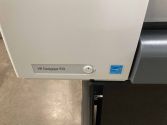 HP Designjet 510
front power button -
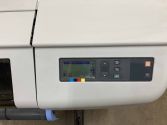 HP Designjet 510
display -
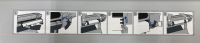 HP Designjet 510
load paper steps (6)


Tips
- ☐ The media profile for "Canvas" does not allow cutting at the end of the job (or even manually), just use the scissors instead.
- ☐ If printer reports "Print Head Path Error 2", check the (Illustrator) file for any elements that might need to be trimmed to fit within the artboard.
Equipment Lists
Large Format Printer
| Picture | Item | Manufacturer | Model Number |
 |
Large Format
Inkjet Printer (4-Color, 42 inch wide)  |
hewlett-packard | HP Designjet 510
(memory upgraded to 416MB) |
 |
spindle hub replacement
(2") |
Trevor Banks
(04/12/22) |
(3D-printed) |
 |
spindle hub adapter
(3" to 2") |
Trevor Banks
(04/16/22) |
(3D-printed) |
Hand Tools
- ☐ Use scissors to cut canvas, (the media profile "Canvas" does not allow cutting.)
- ☐ Return all tools to their proper location after use. This rule applies to all areas of our Makerspace.
Benefits
- PPM members enjoy discounts at the following local merchants:
- (bring proof of PPM membership)
| Website | Benefit | Address |
|---|---|---|
| Woodcraft of Colorado Springs | 10% discount | 4438 Austin Bluffs Parkway |
| CO Lumber Specialties | 10% discount | 3636 Stone Avenue |
| GENERAL AIR | 10% discount | 3031 N Nevada Ave. |
| ACE Hardware Uintah Gardens | 10% discount | 1830 W Uintah Street |
Policies
Materials
- USE OUR OPTIX APP TO PAY FOR CONSUMABLES.
- 14", 24", and 30" stretcher boards mounting canvas prints, cost TBD.
Red Tags
- If equipment needs repairs, place a Red Tag on it and report it via the Pikes Peak Makerspace Slack channel #red-tag-issues
- This advises others on the malfunctioning equipment and ensures that actions can be taken to service/repair the equipment.
Related Software
Printing Software
- Adobe Acrobat
- Preview — Print directly from macOS applications, including Preview
Additional Help
Use the #printer-suite channel in Slack
Note that we have a Slack channel (#job-board) for members to post, discuss, or accept job opportunities either within PPM or from the community.
Search the PPM Wiki — include Content pages as well as Multimedia.
Contact Us if you cannot find your answer here on our Wiki or if you notice any outdated information.